Alternate streams
This feature provides a vertical list of media items displayed during playback. This feature enhances user experience by providing multiple perspectives, improving immersion and interactivity.
All streams must share the same event ID, allowing the DIVA Player to synchronize video playback (multistream mode). This ensures a smooth and consistent experience when switching between streams, maintaining the playback position across different angles.
What you learn
You're instantiating DIVA Player in your web front-end and relying on DIVA Back Office as the video streaming source.
The goal of this article is to build the simplest front-end to stream a video from the DIVA Back Office with a multistream videolist.
Before starting
- Ensure the DIVA Back Office instance you rely on is up and running.
- Ask your video engineers team the
<video id>and the related<settings URL>. - Ensure the VideoMetadata contains the media lists data.
- Ensure the VideoMetadata
behaviorismultistreamSwitch(default),multistreamMultiviewormultistreamPip. - Ensure the VideoMetadata
rowTitleandmenuLabelare translated in the dictionary.
Instantiation
There's no code to add to the Basic instantiation code.
The DIVA Player supports two display modes for alternate streams, controlled by the behaviour field:
Multistream Switch mode
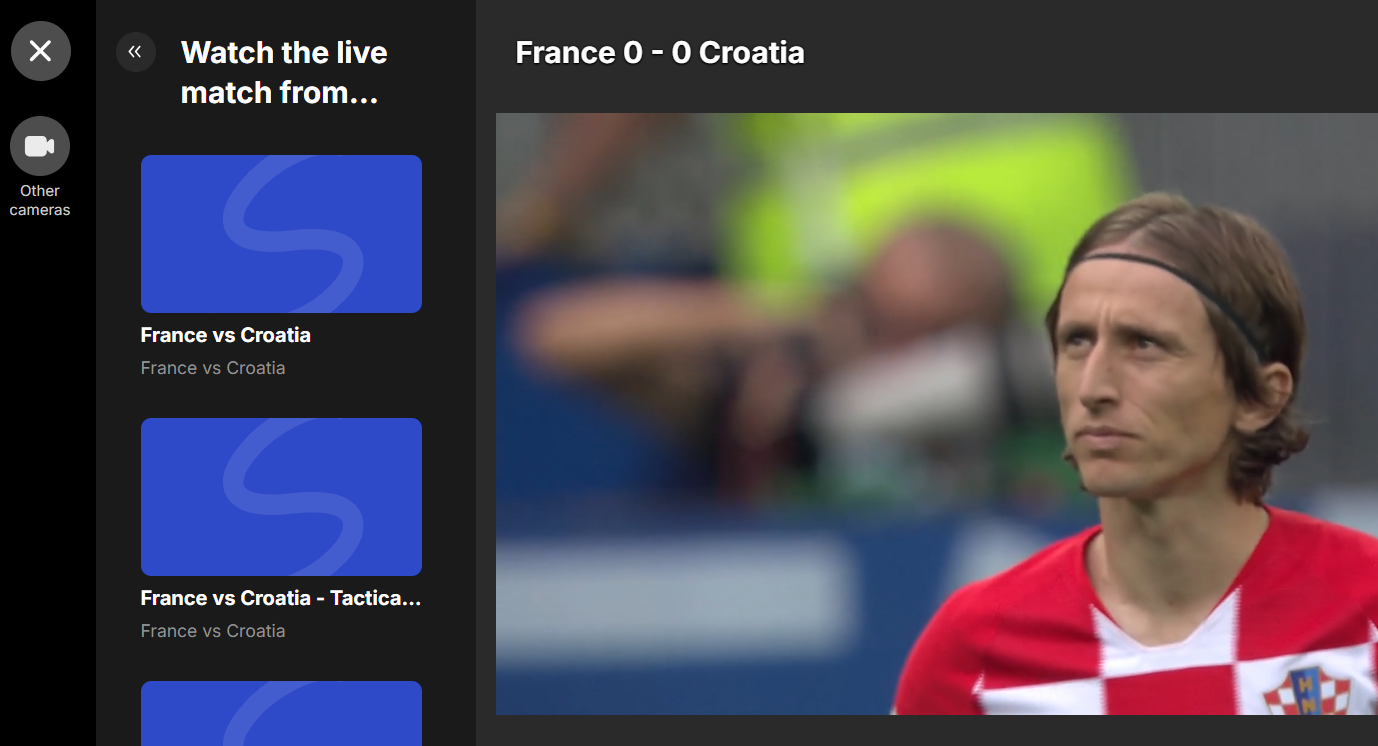
- The player stops the current stream and starts a new one.
- The transition occurs instantly upon user interaction.
- The icon displayed for this action is a camera (fixed and cannot be changed).
- The icon color can be customized and the label could be defined in the mediaLists data as
menuLabel.
Multistream Multiview mode
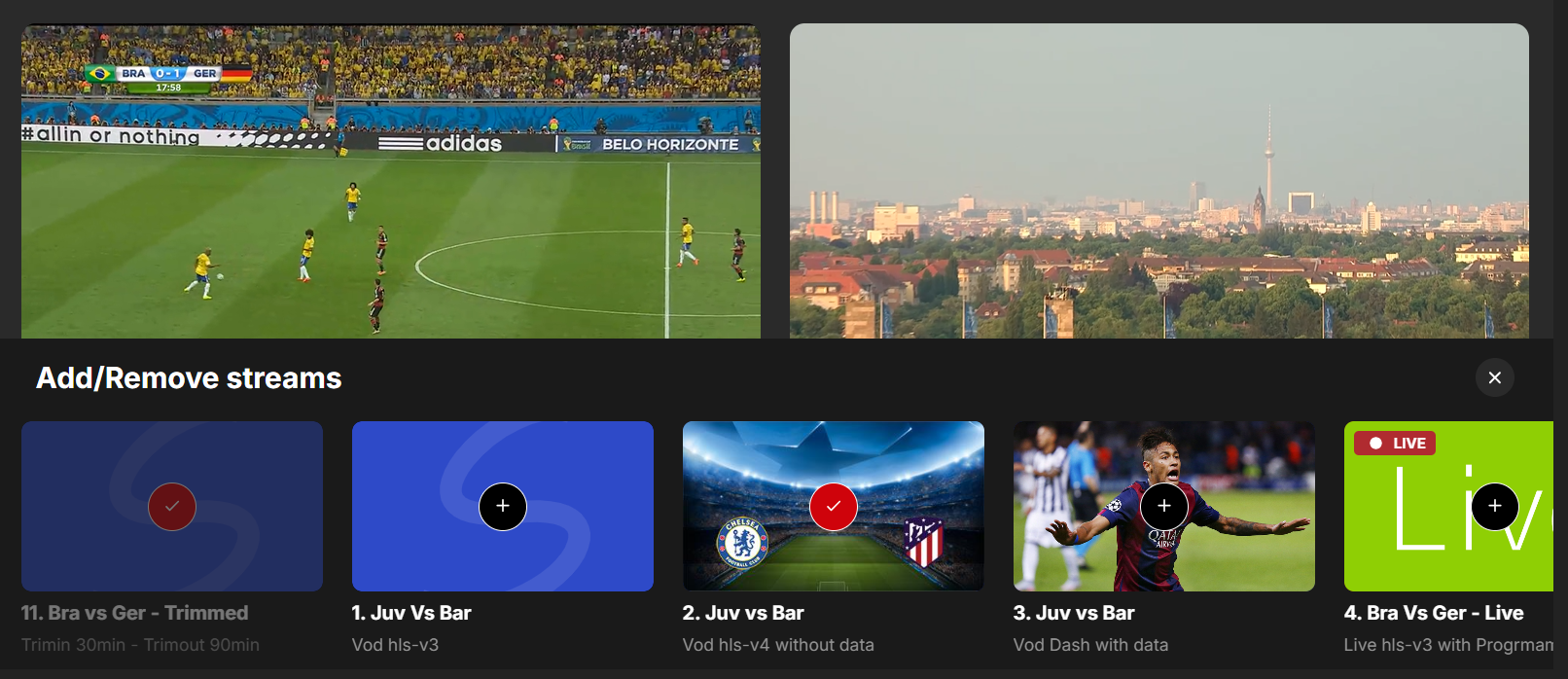
- Multiple streams are displayed simultaneously in a split-screen.
- The user can interact with the streams independently.
- Check the multiview article for more details.
MultiStream Pip mode
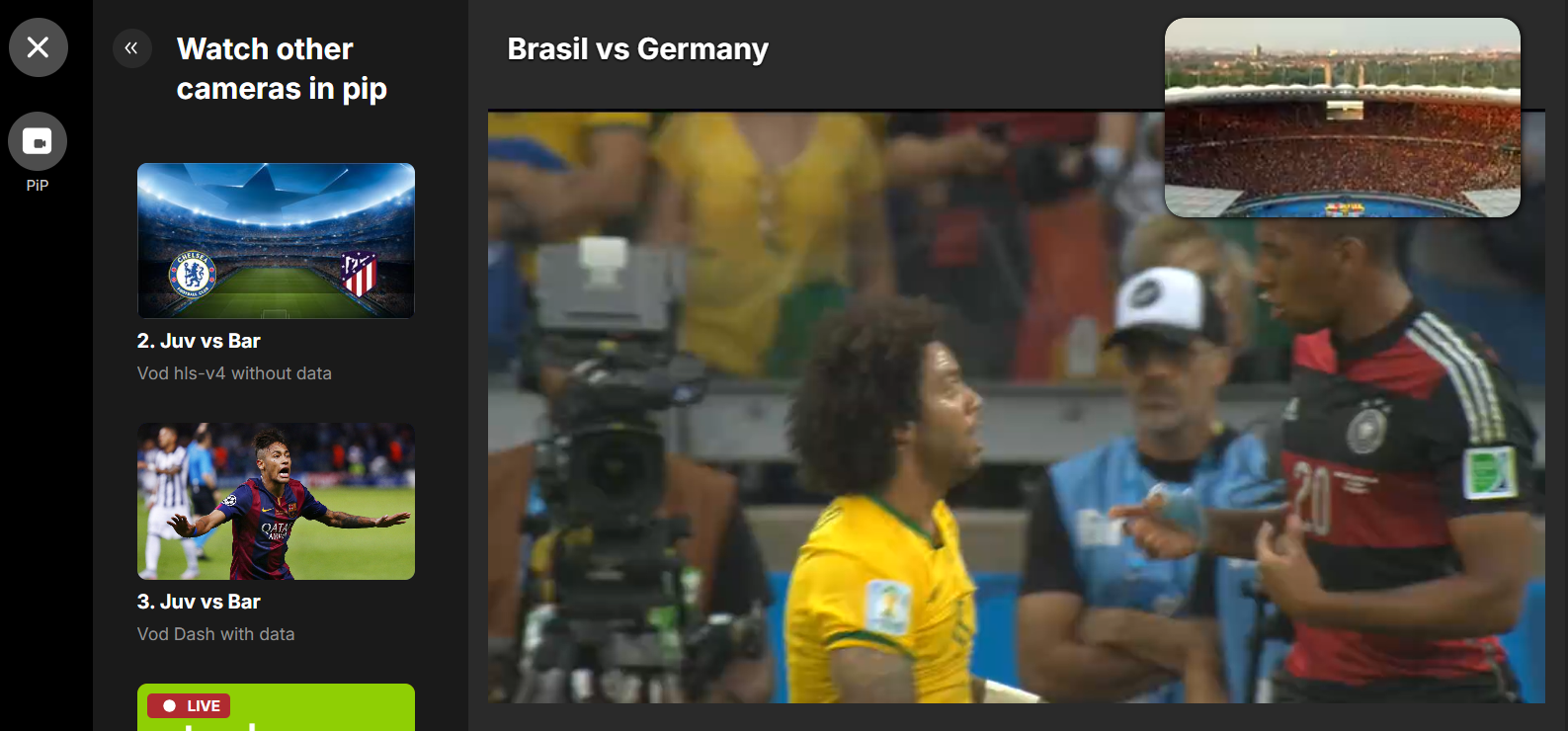
- The player is opening a new smaller video on top of the current video playing.
- The selection of a different video will affect the current video playing in the PiP player.
- Check the PiP article for more details.
- The icon displayed for this action is a small camera in a bigger video (fixed and cannot be changed).
- The icon color can be customized and the label could be defined in the mediaLists data as
menuLabel.
Working sample code (.tsx)
Write the App() function to read the VideoMetadataMap as in the following example, and set the medialists array:
import { AssetState, BoAdapterWebComponentProps, DivaWebBoAdapter, VideoMetadata } from "@deltatre-vxp/diva-sdk/diva-web-bo-adapter";
import "@deltatre-vxp/diva-sdk/diva-web-sdk/index.min.css";
import { useState } from "react";

const itemId = "<itemId>";

const libs = {
  mux: "https://cdnjs.cloudflare.com/ajax/libs/mux.js/6.2.0/mux.min.js",
  shaka: "https://ajax.googleapis.com/ajax/libs/shaka-player/4.16.15/shaka-player.compiled.js",
  hlsJs: "https://cdn.jsdelivr.net/npm/hls.js@1.5.7",
  googleIMA: false,
  googleDAI: false,
  googleCast: false,
  threeJs: false
};

const config = {
  videoId: itemId,
  libs: libs,
  settings: {
    general: {
      timeToDisableAutoplay: 5400000
    }
  }
};

function App() {
  const [isVideoLive, setIsVideoLive] = useState(false);
  const props: BoAdapterWebComponentProps = {
    settingsUrl: "<settings URL>",
    languageCode: "en-US",
    languageDictionary: "en-US",
    onDivaBoAdapterError: console.error,
    config: config,
    videoMetadataMap: async (vd: VideoMetadata) => {
      vd.mediaLists = [
        {
          listId:"xxxxxx",
          rowTitle:"diva_watch_other_camera", /*default menuLabel value*/
          defaulImageFormat:"tile",
          defaultItemLayout: "vertical",
          defaultItemType: "video",
          menuLabel: "diva_other_camera", /*default empty*/
          behaviour: "multistreamSwitch",
          items: [
            {
              itemId: "12345678",
              title: "France vs Croatia",
              caption: "France vs Croatia",
              imageUrl: "http://sw.image/img1.jpg",
            },
            {
              itemId: "12345679"
              title: "France vs Croatia",
              caption: "France vs Croatia - Tactical View",
              imageUrl: "http://sw.image/img2.jpg",
            },
            {
              itemId: "12345680"
              title: "Star Wars EP III - Revenge Of The Sith",
              caption: "I have brought peace, freedom, justice and security to my new Empire!",
              imageUrl: "http://sw.image/ep3.jpg",
              ccBadge: false,
              adBadge: false,
            }
          ]
        },
      ];
      vd.behavior = {
        endOfPlay: {
          countdownToAutoplay: 10000
        }
      }
      return vd;
    }
  };

  return (
    <>
      <DivaWebBoAdapter {...props} />
    </>
  );
}
Dictionary
Ensure the dictionary file contains the custom keys.
Migration procedure
Key Changes
- In the
videometadata, the formervideolistsnode becomes an array ofmedialists. Eachvideolistis transformed into amediaListobject. - What was previously the
channelnode in the formervideolist's XML, which was referenced in thefeedUrlfield, is now represented as amediaListobject. - What was previously an
itemwithin thechannelnode in the formervideolist's XML, which was referenced in thefeedUrlfield, is now represented as amediaListItemobject.
Migration Mapping
From "videoLists" to Media List
Old Field | New Field |
|---|---|
videoLists | mediaLists |
From "videoLists" item to Media List
Old Field | New Field |
|---|---|
id | listId (must be generated if empty) |
feedUrl | not needed anymore |
highlightColor | not needed anymore |
highlightColorLight | not needed anymore |
message | rowTitle |
messageNoVideo | noItemsMessage |
menu | menuLabel |
behaviour | behaviour |
pollingInterval | pollingInterval backward compatibility only* |
redirectOnClick | redirectOnClick backward compatibility only* |
isRecommended | isRecommended backward compatibility only* |
template | not needed anymore |
*backward compatibility only: these fields are not used in the new format but are kept for backward compatibility.
- | New Field |
|---|---|
| - | defaultItemType = "video" |
| - | defaultItemLayout = "vertical" |
| - | showInEndOfPlay = false* |
*showInEndOfPlay: if "true" it will add the current list in the End Of Play experience.
From XML feed "items" to Media List Items
Old Field | New Field |
|---|---|
id | itemId |
title | title |
description | caption |
videoThumbnail | imageUrl |
link | not needed anymore |
guid | not needed anymore |
pubDate | not needed anymore |
category | not needed anymore |
videoImage | not needed anymore |
cameraType | not needed anymore |
cameras | not needed anymore |
- | New Field |
|---|---|
| - | imageFormat = "tile" |
| - | itemType = "video" |
| - | itemLayout = "vertical" |
Example: Transformation Process
Input - Original Video Metadata JSON (Old Format)
{
  "videoLists": [
    {
      "feedUrl": "https://example.com/feed.xml",
      "highlightColor": "#FF0000",
      "highlightColorLight": "#FF0000",
      "message": "Recommended Videos",
      "messageNoVideo": "No videos available",
      "menu": "Recommended",
      "behaviour": "multistreamSwitch",
      "pollingInterval": 30000,
      "redirectOnClick": true,
      "isRecommended": true,
      "template": "default"
    }
  ]
}
Input - Original Video list RSS Feed XML (Old Format)
<rss version="2.0">
    <script src="chrome-extension://mfidniedemcgceagapgdekdbmanojomk/js/elephant.js"/>
    <channel>
        <title>Star Cricket RSS Channel</title>
        <link>https://www.starsports.com/sitemaps/news.xml</link>
        <description>Latest News</description>
        <language>en-gb</language>
        <lastBuildDate>2014-04-04T07:56:00Z</lastBuildDate>
        <copyright>Copyright (C) Star Cricket</copyright>
        <item>
            <id>live_videolist</id>
            <title>4. Bra Vs Ger - Live</title>
            <description>Live hls-v3 with ProgrmamDateTime shifted 20 min after</description>
            <link>custom-link</link>
            <guid isPermaLink="false"/>
            <pubDate>2014-06-11T22:25:51Z</pubDate>
            <videoImage url=""/>
            <videoThumbnail url="my-image.png"/>
            <live>true</live>
            <label>live</label>
            <category>video</category>
            <cameraType>MULTICAM</cameraType>
            <cameras>TEAMB</cameras>
        </item>
    </channel>
</rss>
Output - Converted Media List Format (New Format)
{
  "mediaLists": [
    {
      "listId": "mediaListId",
      "rowTitle": "Recommended Videos",
      "noItemsMessage": "No videos available",
      "menuLabel": "Recommended",
      "behaviour": "multistreamSwitch",
      "pollingInterval": 30000,
      "redirectOnClick": true,
      "isRecommended": true,
      "defaultItemType": "video",
      "defaultItemLayout": "vertical",
      "defaulImageFormat": "tile",
      "items": [
        {
          "itemId": "live_videolist",
          "title": "4. Bra Vs Ger - Live",
          "caption": "Live hls-v3 with Program DateTime shifted 20 min after",
          "imageUrl": "my-image.png",
          "itemType": "video",
          "itemLayout": "vertical"
        }
      ]
    }
  ]
}